If your business purchased Microsoft 365 through GoDaddy, you may already be feeling the frustration: restricted admin access, missing features, limited integration options, and poor visibility into your own environment. GoDaddy Defederation is the process of separating your Microsoft 365 tenant from GoDaddy’s managed system and bringing it under your direct control — or under Microsoft’s official licensing.

GoDaddy Defederation for Microsoft 365: Complete Step-by-Step Guide
- 11/09/2026
- 2:15 pm
- Sheetal Mehta

What Is GoDaddy Defederation?
When you subscribe to Microsoft 365 through GoDaddy, your tenant is federated with GoDaddy’s reseller system. This means GoDaddy acts as an intermediary between you and Microsoft. While convenient for initial setup, this arrangement creates significant limitations that affect how you manage your business environment.
GoDaddy Defederation — also called Remove GoDaddy from Microsoft 365 or Defederate GoDaddy Office 365 — is the technical process of:
- Disconnecting the federation between GoDaddy and your Microsoft 365 tenant
- Moving your domain and users to a direct Microsoft tenant
- Transferring or reassigning Microsoft 365 licenses directly through Microsoft
- Regaining full administrative control over your environment
Why Businesses Choose to Defederate from GoDaddy
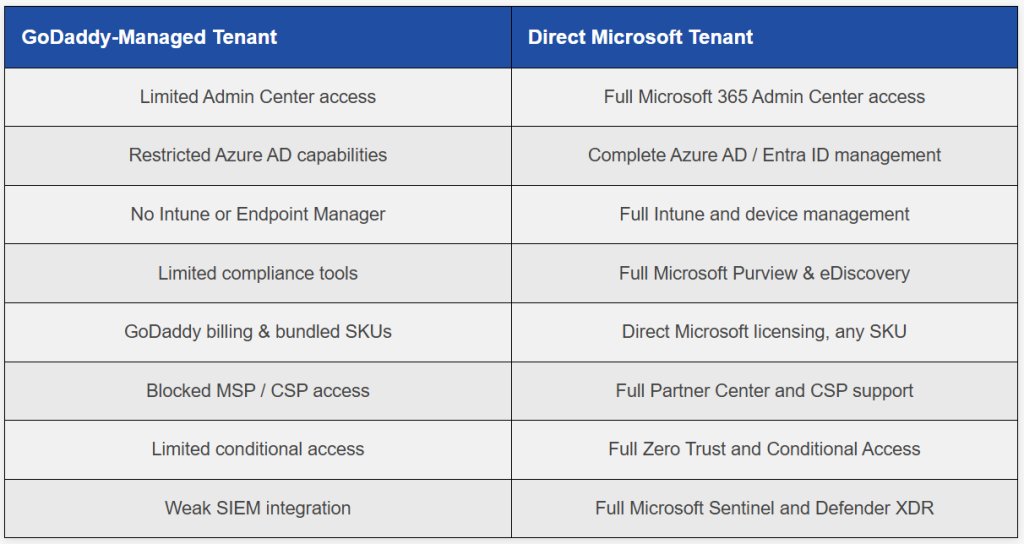
Organizations of all sizes choose to migrate from GoDaddy-managed Microsoft 365 environments for a variety of technical and business reasons. Understanding these limitations can help organizations evaluate whether a direct Microsoft 365 tenant better aligns with their requirements.
Restricted Admin Access
GoDaddy’s Microsoft 365 management experience can provide a more limited administrative interface than a directly managed Microsoft 365 tenant. Depending on the plan and configuration, certain settings, administrative controls, and diagnostic tools may be unavailable or require additional support. IT administrators may have limited access to features in the Exchange Admin Center, Microsoft Entra ID, and Microsoft Defender compared with a directly managed Microsoft 365 environment.
Limited Microsoft 365 Feature Availability
Advanced compliance and eDiscovery capabilities may be restricted or require additional licensing
Microsoft Purview, Defender for Office 365 Plan 2, and Intune may require appropriate direct Microsoft licensing and tenant configuration
Conditional Access capabilities may be limited depending on the licensing and tenant setup
Power Platform and advanced automation capabilities may require additional licensing or configuration
SharePoint and Teams governance capabilities can vary depending on the available Microsoft 365 plans and administrative controls
Licensing Limitations
GoDaddy bundles specific Microsoft 365 plans that may not always align with an organization’s technical and business requirements. Organizations may encounter situations where the available plan does not provide the security, compliance, device-management, or automation capabilities they require. Moving to a directly managed Microsoft 365 tenant can provide greater flexibility when selecting and managing Microsoft 365 licensing.
Migration and Integration Challenges
Third-party tools, SaaS platforms, and enterprise applications may require access to Microsoft Entra ID app registrations, service principals, or administrative consent workflows. Depending on the GoDaddy-managed environment and the required integration, these requirements can create additional configuration steps or limitations.
Security and Compliance Restrictions
Custom Conditional Access and MFA policies may be limited depending on the available licensing and administrative controls
Audit log access and SIEM integration capabilities can vary by Microsoft 365 plan and tenant configuration
Organizations with requirements related to HIPAA, SOC 2, ISO 27001, or other compliance frameworks may require greater control over their Microsoft 365 environment
Microsoft Secure Score recommendations and security-management capabilities may be more limited when the available licensing or administrative controls do not provide access to the full Microsoft 365 security feature set
A directly managed Microsoft 365 tenant can provide organizations with greater control over identity, security, compliance, licensing, integrations, and Microsoft 365 administration.
Business Benefits of Moving to a Direct Microsoft Tenant
Pre-Defederation Checklist
Before beginning the GoDaddy to Microsoft 365 migration process, complete each of the following preparation steps. Thorough preparation helps reduce the risk of downtime, configuration issues, and data loss during the migration.
1. Review Existing GoDaddy Subscriptions
Log in to your GoDaddy account and document all active Microsoft 365 plans
Note subscription renewal dates and current user counts
Identify any GoDaddy-specific add-ons, such as email archiving or other services
2. Back Up All Microsoft 365 Data
Export mailbox data using Outlook PST export or a suitable third-party backup solution
Download OneDrive files to a local or external backup destination
Export or otherwise back up relevant SharePoint content and Teams data
Back up contacts, calendar items, and tasks for each user where applicable
3. Verify Domain Ownership and DNS Access
Confirm that your organization owns and controls the domain and its DNS records
Ensure you can access your DNS registrar, whether it is GoDaddy or another provider
Document the current MX, SPF, DKIM, DMARC, and Autodiscover records
4. Identify Admin Credentials
Locate the current GoDaddy Microsoft 365 administrator account credentials
Confirm access to the GoDaddy administration portal
Document the Microsoft 365 tenant domain, such as
yourcompany.onmicrosoft.com
5. Map Users and Licenses
Create a spreadsheet listing every user, email address, and current license type
Identify which Microsoft 365 plan each user will require in the new tenant
Account for shared mailboxes, resource mailboxes, distribution groups, and other relevant objects
6. Verify New Microsoft 365 Tenant Readiness
Decide whether to create a new direct Microsoft 365 tenant or use an existing tenant
If working with an MSP, confirm that the required Partner Center or CSP access has been established
Prepare the necessary administrator credentials for the destination tenant
Confirm that the required Microsoft 365 licenses and services are available in the destination environment
7. Prepare Outlook Profiles and User Communication
Notify all users about the planned migration window and expected impact
Provide instructions for reconnecting Outlook, mobile mail applications, Teams, and other Microsoft 365 services
Schedule the migration during a low-traffic period, such as evenings or weekends
Prepare user support procedures for common post-migration issues, including sign-in, Outlook profile, mobile-device, and Teams configuration problems
Step-by-Step GoDaddy Defederation Process
Step 1 — Create or Prepare Your Direct Microsoft 365 Tenant
Go to Microsoft 365 and sign up for a new tenant.
Choose the appropriate plan, such as Business Basic, Business Standard, Business Premium, or an Enterprise plan, based on your organization’s requirements.
Complete the initial setup using a temporary
yourcompany.onmicrosoft.comdomain.Add yourself as a Global Administrator.
Do not add your production domain yet, as it is still associated with the GoDaddy-managed tenant.
Step 2 — Purchase and Assign Microsoft 365 Licenses in the New Tenant
In the new Microsoft 365 Admin Center, navigate to Billing > Purchase services.
Purchase the required number of licenses for all users.
Do not assign licenses to users yet if your migration process requires accounts to be created or configured first.
Step 3 — Cancel or Prepare to Remove GoDaddy Microsoft 365 Subscriptions
Important: Do not cancel GoDaddy subscriptions until all required data has been migrated and validated. Premature cancellation may affect access to the source environment and can increase the risk of data loss.
Sign in to your GoDaddy account.
Navigate to My Products > Microsoft 365.
Review the available cancellation options and applicable data-retention policies before making any changes.
Keep the existing subscriptions active until migration and validation are complete.
Step 4 — Remove the Domain from the GoDaddy Microsoft 365 Tenant
Sign in to the GoDaddy-managed Microsoft 365 administration environment.
Open the Microsoft 365 Admin Center and go to Settings > Domains.
Remove or reassign users and other objects associated with your custom domain to the temporary
yourcompany.onmicrosoft.comdomain, where required.Once no users or services depend on the custom domain, select the domain and choose Remove.
Confirm the removal when prompted.
Warning: A custom domain can generally be associated with only one Microsoft 365 tenant at a time. The domain must be removed from the source tenant before it can be added to the destination Microsoft 365 tenant.
Step 5 — Add the Domain to Your Direct Microsoft 365 Tenant
Sign in to the new Microsoft 365 Admin Center.
Go to Settings > Domains > Add domain.
Enter your custom domain and select Use this domain.
Microsoft will provide a DNS verification record, typically a TXT record.
Sign in to your DNS provider and add the required verification record.
Return to the Microsoft 365 Admin Center and select Verify.
Step 6 — Update DNS Records
| Record Type | Purpose |
|---|---|
| MX Record | Routes incoming email to Microsoft 365 |
| SPF Record (TXT) | Helps authorize approved email-sending services |
| DKIM CNAME Records | Supports email authentication and signing |
| DMARC Record (TXT) | Helps protect against email spoofing and domain impersonation |
| Autodiscover CNAME | Supports Outlook account configuration where applicable |
| Microsoft 365 Verification TXT | Confirms domain ownership |
DNS propagation time varies depending on DNS provider, TTL settings, and caching. Lowering the TTL before migration can help reduce the time required for DNS changes to take effect, although it does not guarantee immediate propagation.
Step 7 — Create Users and Assign Licenses in the New Tenant
In the new Microsoft 365 Admin Center, go to Users > Active users.
Create user accounts corresponding to the original GoDaddy Microsoft 365 users.
Assign the appropriate licenses purchased in Step 2.
Use the same UPNs, such as
user@yourdomain.com, where possible to minimize user disruption.Set temporary passwords and require users to change them at first sign-in, if appropriate for your organization’s security requirements.
Step 8 — Migrate Email Data
Select the appropriate Microsoft migration method based on the source environment and migration scenario.
Depending on the environment, options may include IMAP migration, cutover migration, or third-party migration tools.
Alternatively, use third-party solutions such as BitTitan MigrationWiz or Microsoft FastTrack, where eligible and appropriate.
Migrate supported mailbox data, including email, calendar items, contacts, and tasks.
Validate that the migrated data appears correctly in the destination mailboxes.
Step 9 — Reconnect Outlook and Mobile Devices
Remove or replace the old email account configuration in Outlook on each user’s computer, following the organization’s migration procedure.
Add the new Microsoft 365 account using the same email address where applicable. Outlook can use Microsoft 365’s autodiscover and modern authentication mechanisms to configure the account.
On mobile devices, remove the old account configuration and add the new Microsoft 365 account.
Reconfigure Microsoft Teams and other Microsoft 365 applications as required.
Step 10 — Verify Mail Flow and Microsoft Services
Send test emails to and from the organization’s domain to confirm mail flow.
Verify that spam filtering, mail-flow rules, transport rules, and other applicable email configurations are working correctly.
Confirm SharePoint, OneDrive, and Teams access for all users.
Check that third-party integrations and connected applications are functioning correctly.
Review the Microsoft 365 Message Center for relevant notifications, service changes, and required administrative actions.
Working with us
Ready to Migrate? Get Expert Support.
If your organization is planning a large-scale or compliance-sensitive Google Workspace to Microsoft 365 Migration, working with a certified Microsoft partner ensures your data, users, and infrastructure are protected at every step.

Real-World Business Scenarios
Scenario 1: Growing Business Needing Full Admin Access
A 50-user professional services firm had been running Microsoft 365 through GoDaddy for three years. When the company hired its first internal IT administrator, the team identified limitations around Exchange administration, Conditional Access, and Microsoft Defender for Office 365 configuration. After completing the required GoDaddy defederation process and moving to a directly managed Microsoft 365 Business Premium tenant, the IT administrator gained greater administrative control over the environment.
Scenario 2: Enterprise Migrating for Compliance Requirements
A healthcare organization needed to meet HIPAA-related requirements that involved Microsoft Purview compliance capabilities and advanced auditing. The organization’s GoDaddy-managed environment limited access to some of the required administrative and compliance features. A structured migration to a directly managed Microsoft 365 tenant provided greater control over compliance configuration and auditing within the organization’s required implementation timeline.
Scenario 3: MSP Taking Over Microsoft 365 Management
An MSP was engaged to manage a client’s Microsoft 365 environment but encountered limitations with the existing GoDaddy-managed setup when establishing standard Microsoft partner management and delegated administrative access. The MSP initiated the required GoDaddy defederation process, transitioned the tenant to an appropriate CSP relationship, and established management access using role-based permissions.
Scenario 4: Businesses Planning Intune or Hybrid Identity
A manufacturing company wanted to deploy Microsoft Intune for device management and configure Microsoft Entra hybrid join for integration with its on-premises Active Directory environment. The existing GoDaddy-managed configuration presented limitations for the required setup. After transitioning to a directly managed Microsoft 365 environment, the organization was able to implement its planned identity, device-management, and Zero Trust security controls.
Common Challenges and Troubleshooting Tips
| Issue | Likely Cause | Solution |
|---|---|---|
| Users cannot sign in | Authentication or password configuration needs to be updated after the tenant transition | Reset passwords in the new Microsoft 365 Admin Center where required and enforce MFA |
| DNS propagation delay | High TTL or cached DNS records | Lower TTL before migration where appropriate and use DNS lookup tools to verify changes |
| Outlook shows errors | Old Autodiscover information or cached Outlook profile | Recreate the Outlook profile and authenticate with the new Microsoft 365 account |
| Email not arriving | MX record has not been updated or DNS changes are still cached | Verify the MX record and allow time for DNS propagation |
| Missing licenses | Licenses were not assigned in the new tenant | Open the Microsoft 365 Admin Center and assign the appropriate licenses to users |
| Domain verification fails | Required TXT record has not propagated | Verify the TXT record using DNS lookup tools and allow additional time for propagation |
| User synchronization issues | Microsoft Entra Connect configuration still points to the previous tenant | Reconfigure Microsoft Entra Connect to synchronize with the new tenant |
Best Practices for a Smooth Defederation
Reduce Downtime
Lower DNS TTL values 24–48 hours before the migration window where appropriate
Schedule migration activities outside normal business hours, such as Friday evening or a weekend
Pre-create required user accounts and licenses before switching DNS records
Plan a controlled coexistence or transition period where appropriate for the migration scenario
Protect Email Continuity
Keep the GoDaddy Microsoft 365 tenant active until migration and DNS changes have been fully validated
Monitor mail flow using message tracing and other available Exchange Online diagnostic tools in the destination tenant
Configure temporary mail-flow or forwarding measures only where supported and appropriate for the migration design
Avoid Data Loss
Verify that backups are complete and restorable before beginning defederation or tenant-transition activities
Use a migration tool that provides error reporting, logging, and retry capabilities where applicable
Do not delete user accounts or source data in the GoDaddy tenant until migration and validation are fully complete
Communicate With End Users
Send a clear, plain-language migration announcement at least one week before the planned migration
Provide step-by-step instructions for reconnecting Outlook, mobile email, Teams, and other Microsoft 365 applications
Set up a help desk channel through Teams, email, or another support platform for migration-day questions
Maintain Security During Migration
Enable MFA for accounts in the new tenant before users begin accessing production services
Configure appropriate Conditional Access policies before go-live
Review Microsoft Secure Score after migration to identify potential security improvements
Configure Microsoft Defender for Office 365 anti-phishing and anti-malware policies where included in the organization’s licensing
Questions
Frequently asked
Will users lose emails during defederation?
Typically, no. Mailboxes usually remain intact if the process is performed correctly and licenses are reassigned properly.
Can I keep my existing domain name?
Yes. Organizations usually retain their existing domains throughout the migration process.
Is GoDaddy de-federation risky?
Like any infrastructure change, risks exist. However, careful planning, backups, and testing greatly reduce potential issues
Conclusion
GoDaddy-managed Microsoft 365 environments may work well for startups and small businesses initially, but growing organizations often require greater flexibility, stronger security controls, and complete administrative ownership.
A properly planned GoDaddy to Microsoft 365 migration enables businesses to unlock the full capabilities of Microsoft 365 while improving security, scalability, and compliance readiness.
By following a structured migration process, validating DNS and authentication settings, and leveraging expert GoDaddy migration support when needed, organizations can complete defederation safely with minimal disruption.
If your organization is planning to migrate from GoDaddy to Microsoft 365, careful preparation and expert execution are the keys to a successful transition in 2026.
Keep reading